Showing posts with label Tutorials. Show all posts

Saturday, May 14, 2011

Essential Flash Scripts

FLASH SCRIPTING

Full Screen Command
            Select the First frame -> right click -> actions->
                                    fscommand("fullscreen", "true");

Quit Command
            Create button -> actions ->
                                    on (release) {
                                                fscommand("quit");
}

Go to Next Page
            Select & right click the button -> actions ->
                                    on (press) {
                                                gotoAndPlay("type the scene name", 1);
}

URL Command
            Select the Button -> actions ->
                                    on (release) {
                                                getURL("type the folder name", "_self");
}

On mouse Command
            First create the Movie clip -> drag the movie clip in to the current scene->
Actions->
                                    onClipEvent (load) {
                                                _x = 0;
                                                _y = 0;
                                                speed = 5;
}
onClipEvent (enterFrame) {
                                                endX = _root._xmouse;
                                                endY = _root._ymouse;
                                                _x += (endX-_x)/speed;
                                                _y += (endY-_y)/speed;
}

Stop All sounds
            Mute all sounds when clicked in a button -> actions ->
                                    on (press) {
stopAllSounds();

}
Juke box Command
            Import the sound in to the library -> press F11 -> right click the sound -> linkage ->
Tick -> Export for action script -> and give a Name -> create the button -> Actions ->
                                    on (press) {
                                                stopAllSounds();
                                                mysound = new Sound();
                                                mysound.attachSound("type the sound name");
                                                mysound.start();
}

Mouse Trail
            Select the first frame -> right click -> actions ->

Text = "keltron animation campus";
letters = Text.split("");
letterformat = new TextFormat();
letterformat.font = "Tahoma";
letterformat.align = "center";
letterformat.size = "10";
spacing = 6;
speed = 2;
for (var LTR = 0; LTR<letters.length; LTR++) {
            mc = _root.createEmptyMovieClip(LTR+"l", LTR);
            mc.createTextField(letters[LTR]+"t", LTR, LTR*spacing, 10, 20, 20);
            with (mc[letters[LTR]+"t"]) {
                        text = letters[LTR];
                        setTextFormat(letterformat);
                        selectable = false;
        }
            if (LTR) {
                        mc.prevClip = _root[(LTR-1)+"l"];
                        mc.onEnterFrame = function() {
                        this._x += (this.prevClip._x-this._x+5)/speed;
                        this._y += (this.prevClip._y-this._y)/speed;
                };
        } else {
                        mc.onEnterFrame = function() {
                        this._x += (_root._xmouse-this._x+10)/speed;
                      this._y += (_root._ymouse-this._y)/speed;
                };
        }
}


Game Command
            First create a Movie Clip -> apply the actions ->
                       
onClipEvent (enterFrame) {
            if ((Key.isDown(Key.LEFT)) && !(Key.isDown(Key.RIGHT))) {
                        this._x -= 5;
                        this._rotation=270;
            }
            if ((Key.isDown(Key.RIGHT)) && !(Key.isDown(Key.LEFT))) {
                        this._x += 5;
                        this._rotation=90;
            }
            if ((Key.isDown(Key.UP)) && !(Key.isDown(Key.DOWN))) {
                        this._y -= 5;
                        this._rotation=0;
            }
            if ((Key.isDown(Key.DOWN)) && !(Key.isDown(Key.UP))) {
                        this._y += 5;
                        this._rotation=180;
            }
            if ((Key.isDown(Key.UP)) && (Key.isDown(Key.RIGHT)) &&!(Key.isDown(Key.DOWN)) && !(Key.isDown(Key.LEFT))) {
                       
                        this._rotation=45;
            }
            if ((Key.isDown(Key.DOWN)) && (Key.isDown(Key.RIGHT)) &&!(Key.isDown(Key.UP)) && !(Key.isDown(Key.LEFT))) {
                       
                        this._rotation=135;
            }
            if ((Key.isDown(Key.DOWN)) && (Key.isDown(Key.LEFT)) &&!(Key.isDown(Key.UP)) && !(Key.isDown(Key.RIGHT))) {
                       
                        this._rotation=225;
            }
            if ((Key.isDown(Key.UP)) && (Key.isDown(Key.LEFT)) &&!(Key.isDown(Key.RIGHT)) && !(Key.isDown(Key.DOWN))) {
                       
                        this._rotation=315;
            }
}
                       

Saturday, October 23, 2010

How to Format USB Drive in NTFS File System


How to Format USB Drive in NTFS File System
From this tutorial you will get an idea about formating a usb drive in Windows NTFS file system instead of FAT or FAT32 file system

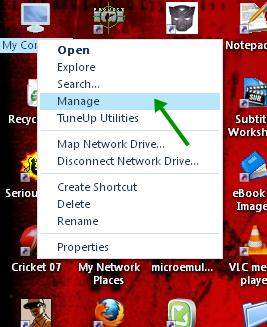
Step1: Right click on My Computer icon on desktop and click "Manage".


Step2:  On Computer Management Window Click on the "+" Button for Disk Drives in Tree View.


Step3: Right Click and Select the properties of USB drive.


Step4: On the policies tab Select "Optimize for Performance" Radio button. 


Step5: On the formatting window select the filesystem type as NTFS and Start Formatting.


Sunday, October 3, 2010

How to make Self Extractor in Winrar

How to make Self Extractor in Winrar

This Simple Tutorial Helps You for Creating Self Extractor (SFX) by using Winrar. You can also add custom software Logos, icons,& Text Instructions in your sfx archive


Click Here to Download Winrar


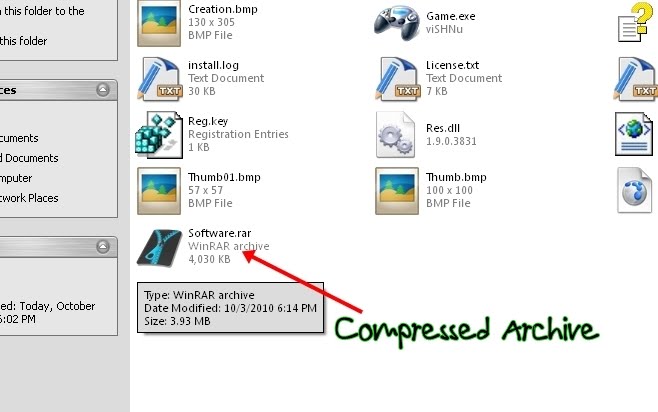
Step1: Place the files of your software to a folder.


Step2: Add a Name to the Archive.


Step3: Right Click on ‘Software.rar’ and open with Winrar.


Step4: On SFX Tab Click on ‘Advanced SFX Options…’


Step4: Add the Name of File To be Executed after the Installation.


Step4: Add the Shortcuts in Desktop, Start menu..etc


Step5:

· Add a bitmap image (Dimension Should be 93x302) file to display as logo in the created or updated SFX archive.

· Add a custom SFX icon(Dimension Should be 32x32 and 16 or 256 colors) to replace the standard icon.


Step6: Click Ok to Finish.


Download Tutorial in *.doc format